Tag: DMARC

  • Email Authentication: What Actually Matters (SPF, DKIM, DMARC, and HELO)

    Email Authentication: What Actually Matters (SPF, DKIM, DMARC, and HELO)

    Email authentication is one of those areas where people think they understand it—until something breaks. Then suddenly, messages are getting flagged, spoofed, or silently dropped, and nobody can quite explain why.

    Let’s be clear: modern email delivery is not just about sending mail. It’s about proving identity at multiple layers, to multiple systems, in a way that aligns consistently. If any piece is misaligned, your message becomes suspect.

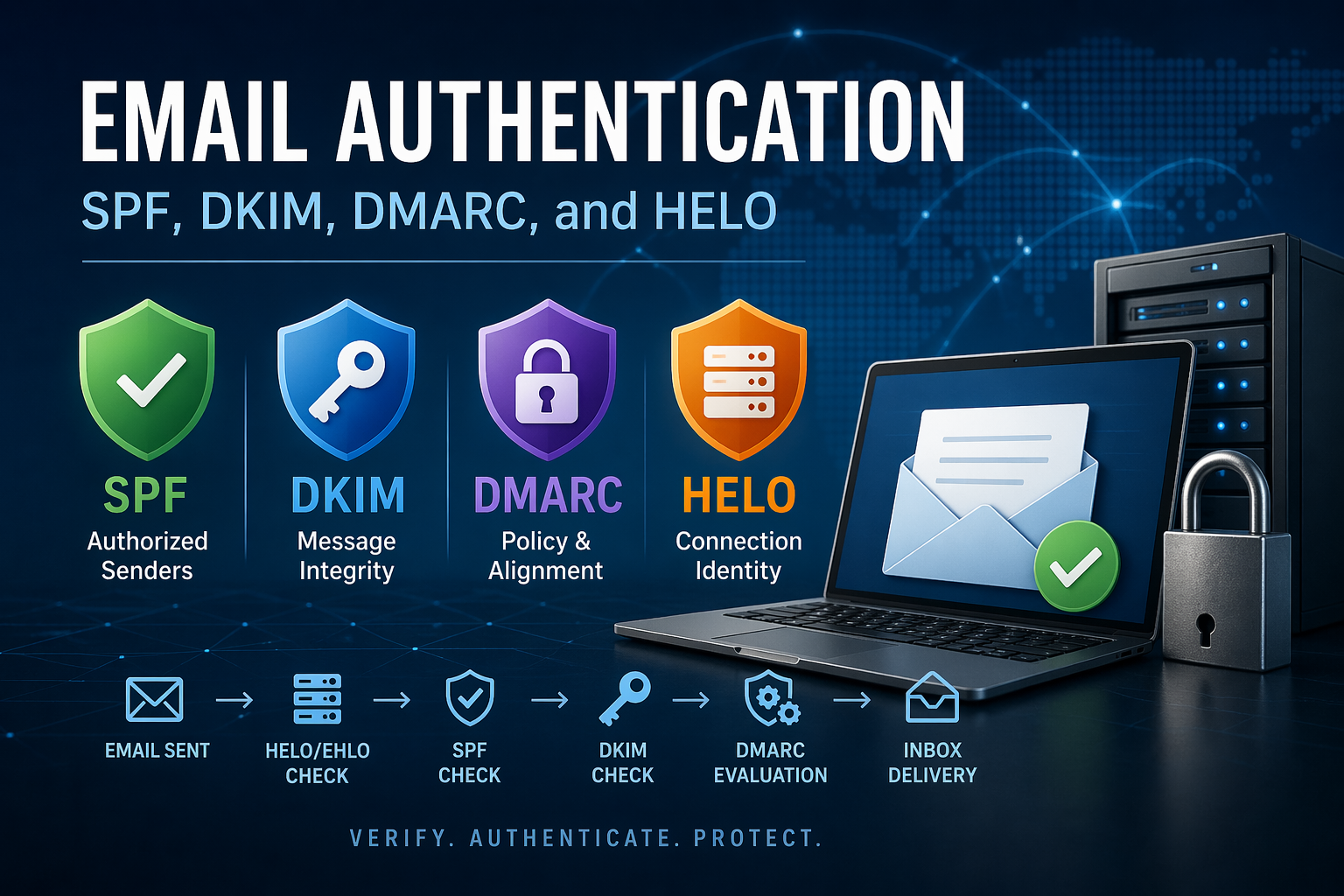
    This post walks through the four components that actually matter in practice: SPF, DKIM, DMARC, and HELO (EHLO)—and how they interact.

    SPF (Sender Policy Framework)

    What it does:
    SPF answers a simple question:

    Is this server allowed to send email for this domain?

    It works by publishing a DNS TXT record listing authorized sending IPs or systems.

    Example:

    v=spf1 include:_spf.google.com include:spf.protection.outlook.com -all

    What happens during a check:

    1. Receiving server extracts the domain from the MAIL FROM (envelope sender)
    2. Looks up the SPF record for that domain
    3. Compares the sending IP against authorized sources

    Key reality:
    SPF is fragile.

    • It breaks on forwarding (because the forwarder’s IP isn’t in your SPF)
    • It does not validate message integrity
    • It does not validate the visible “From” address

    Verdict: Necessary, but insufficient on its own.

    DKIM (DomainKeys Identified Mail)

    What it does:
    DKIM cryptographically signs the message.

    This message hasn’t been altered, and it was authorized by this domain.

    How it works:

    • Sending server signs the email using a private key
    • Public key is published in DNS
    • Receiving server validates the signature

    Key components:

    • d= → domain that signed the message
    • s= → selector (used to locate the DNS key)

    Example DNS record:

    selector1._domainkey.example.com TXT "v=DKIM1; k=rsa; p=MIIBIjANBgkq..."

    What DKIM solves:

    • Message tampering
    • Domain-level authenticity

    What it does NOT solve:

    • It doesn’t guarantee the From address matches the signing domain
    • You can sign mail for one domain while claiming to be another

    Verdict: Strong, but only meaningful when aligned (see DMARC).

    DMARC (Domain-based Message Authentication, Reporting & Conformance)

    What it does:
    DMARC ties everything together—and enforces policy.

    Do SPF and/or DKIM pass, and do they align with the visible From address?

    Example record:

    v=DMARC1; p=reject; rua=mailto:dmarc@example.com; aspf=s; adkim=s

    Core concepts:

    1. Alignment (this is where most people fail)

    • SPF must align with the From domain
    • DKIM must align with the From domain

    Alignment can be:

    • Relaxed (r) → subdomains allowed
    • Strict (s) → exact match required

    2. Policy

    • none → monitor only
    • quarantine → spam/junk
    • reject → outright block

    3. Reporting

    • Aggregate reports (RUA)
    • Forensic reports (RUF, less commonly used)

    Why DMARC matters:

    • Prevents spoofing
    • Enables enforcement
    • Provides visibility

    Hard truth:
    If you don’t have DMARC set to at least quarantine, you are not actually protecting your domain—you’re just observing abuse.

    HELO / EHLO (The Overlooked Signal)

    What it is:
    HELO (or EHLO) is part of the SMTP handshake:

    EHLO mail.example.com

    It tells the receiving server:

    This is who I claim to be at the connection level.

    Why it matters more than people admit:

    Receiving systems evaluate:

    • HELO hostname
    • Sending IP
    • Reverse DNS (PTR record)
    • Forward-confirmed reverse DNS (FCrDNS)

    Common problems:

    • HELO = localhost → immediate suspicion
    • HELO domain doesn’t match PTR → degraded trust
    • No PTR record → often rejected outright

    What good looks like:

    • HELO hostname matches PTR
    • PTR resolves back to the same IP
    • Domain is valid and consistent with sending identity

    Key insight:
    HELO is not part of SPF/DKIM/DMARC—but it absolutely influences reputation and filtering decisions.

    Ignore it, and you will chase “random” deliverability issues forever.

    How They Work Together (Real-World Flow)

    Here’s what actually happens when you send an email:

    1. Connection established
      • HELO/EHLO evaluated
      • IP reputation checked
      • PTR validation
    2. SPF check
      • Is this IP allowed to send for the envelope domain?
    3. DKIM check
      • Is the message signed?
      • Is the signature valid?
    4. DMARC evaluation
      • Do SPF/DKIM pass?
      • Do they align with the From address?
      • Apply policy
    5. Content + reputation filtering
      • Spam heuristics
      • Historical behavior

    Common Failure Patterns (What Actually Breaks)

    Let’s be blunt—these are the mistakes that cause real issues:

    1. SPF passes, but DMARC fails

    • Because SPF domain ≠ From domain
    • Result: spoof still possible

    2. DKIM passes, but wrong domain

    • Signed by a third-party vendor domain
    • No alignment → DMARC fail

    3. Forwarding breaks SPF

    • No DKIM → message fails authentication entirely

    4. Misaligned HELO / PTR

    • Causes silent filtering or throttling
    • Often misdiagnosed as “random delivery issues”

    5. Overly complex SPF

    • 10 DNS lookups → SPF permerror
    • Entire mechanism fails

    Practical Recommendations

    If you want email to work reliably—not just “most of the time”—do this:

    Minimum viable setup

    • SPF: include all senders, end with -all
    • DKIM: enable for every sending platform
    • DMARC: start with p=none, move to quarantine, then reject

    Alignment discipline

    • Ensure:
      • Envelope sender domain aligns
      • DKIM signing domain aligns
    • Avoid mixing domains casually

    HELO hygiene

    • Set a proper hostname (e.g., mail.yourdomain.com)
    • Ensure:
      • PTR record exists
      • Forward + reverse match

    Vendor management

    • Every SaaS sender (M365, Google, SendGrid, etc.) must:
      • Be in SPF
      • Have DKIM enabled
      • Align with your domain

    Final Thought

    SPF, DKIM, and DMARC are not independent features—they are a system of trust. HELO sits just outside that system but still influences the outcome.

    Most organizations don’t fail because they lack these technologies. They fail because they configure them in isolation.

    If you take one thing away from this:

    Alignment matters more than passing checks.

    You can pass SPF and DKIM and still fail DMARC—and that’s exactly how spoofing succeeds in poorly configured environments.

    If you want, I can take a real header from your environment and walk through exactly why it’s passing or failing.

  • Securing Email from Your Domains with DMARC, DKIM, and SPF

    Email security is more important than ever. If you own a domain and use it for email, you need to protect it from spoofing, phishing, and abuse. Cybercriminals love to impersonate domains to send fraudulent emails, which can lead to financial loss, reputation damage, or even legal trouble.

    Fortunately, there are three key technologies that help secure your domain’s email: SPF, DKIM, and DMARC. Together, they form the backbone of modern email authentication. Here’s what they do and how to implement them.

    SPF: Sender Policy Framework

    SPF helps prevent spammers from forging your domain in the “From” field of an email. It does this by specifying which mail servers are authorized to send email on behalf of your domain.

    How to Set Up SPF

    1. Create a TXT record in your domain’s DNS.
    2. Define the mail servers allowed to send emails for your domain.
    3. Use the format:
    v=spf1 include:_spf.google.com -all

    This example allows Google Workspace to send email and blocks everything else.

    1. Publish the record and test it using tools like MXToolbox.

    SPF Best Practices

    • Keep it short: SPF records have a 10 DNS lookup limit.
    • Always end with -all (hard fail) or ~all (soft fail).
    • If multiple services send mail on your behalf, include them using include:.

    DKIM: DomainKeys Identified Mail

    DKIM adds a digital signature to your emails. This signature allows the recipient’s mail server to verify that the email wasn’t tampered with during transmission.

    How to Set Up DKIM

    1. Enable DKIM signing in your email provider’s settings.
    2. Generate a DKIM public-private key pair (many providers do this for you).
    3. Add a DNS TXT record containing your public key. Example:
    default._domainkey.yourdomain.com  TXT  v=DKIM1; k=rsa; p=MIGfMA0GCSqGSIb3DQEBAQUAA4G...
    1. Test your DKIM setup using Google’s DKIM checker.

    DKIM Best Practices

    • Rotate your DKIM keys regularly.
    • Use 2048-bit keys if possible for better security.
    • Ensure your email provider actually signs outgoing mail with DKIM.

    DMARC: Domain-based Message Authentication, Reporting & Conformance

    DMARC is the final piece that ties SPF and DKIM together. It tells mail servers what to do with unauthenticated emails and provides reporting so you can monitor unauthorized activity.

    How to Set Up DMARC

    1. Add a TXT record for _dmarc.yourdomain.com.
    2. Define your DMARC policy. Example:
    v=DMARC1; p=reject; rua=mailto:dmarc-reports@yourdomain.com;  
    • p=reject blocks unauthorized emails.
    • rua= sends reports to your email for analysis.
    1. Start with a monitoring mode (p=none) to gather data before enforcing stricter rules.

    DMARC Best Practices

    • Start with “none” (p=none) to analyze traffic.
    • Gradually move to quarantine (p=quarantine) and then reject (p=reject).
    • Use a DMARC reporting service like Postmark’s DMARC tool for better visibility.

    Important Note for Bulk Senders (Gmail & Yahoo Requirements)

    As of February 2024, Gmail and Yahoo require stricter email authentication for senders who send 5,000 or more emails per day. If you send bulk emails (e.g., newsletters, marketing emails), you must:

    1. Have a DMARC policy, at least “p=none” – A valid DMARC record is now mandatory
    2. Ensure all outgoing mail is authenticated with SPF and DKIM.
    3. Enable easy unsubscription (one-click unsubscribe for marketing emails).
    4. Keep spam complaint rates below 0.3%.

    Failing to meet these requirements could result in your emails being rejected or marked as spam. For more details, check Google’s Sender Guidelines.

    Email Header Analysis: DKIM, SPF, and DMARC

    When troubleshooting email delivery issues or checking for spoofing, analyzing the email headers is crucial. Three key email authentication mechanisms—DKIM (DomainKeys Identified Mail), SPF (Sender Policy Framework), and DMARC (Domain-based Message Authentication, Reporting & Conformance)—help verify the legitimacy of an email.

    In this post, I’ll break down how to analyze an email’s headers and verify these three mechanisms.

    Extracting Email Headers

    Email headers contain routing and authentication details. To analyze them:

    • Gmail: Open the email → Click the three dots → “Show Original”
    • Outlook: Open the email → Click “File” → “Properties” → Copy headers from “Internet headers”
    • Apple Mail: View → Message → “All Headers”
    • Thunderbird: View → Message Source

    Copy the headers and paste them into a tool like MXToolbox’s Header Analyzer or manually check each section.

    SPF (Sender Policy Framework) Analysis

    SPF verifies whether the sending IP is authorized by the domain’s DNS. Look for this header:

    Received-SPF: Pass (domain.com: domain of sender@example.com designates 192.168.1.1 as permitted sender) 
    • Pass → The sending server is authorized.
    • Fail → The sending server is not listed in the SPF record.
    • SoftFail → The server is not authorized, but the domain allows it under certain conditions.
    • Neutral → The domain has not set an explicit policy.
    • None → No SPF record found.

    To manually check SPF, run:

    nslookup -type=TXT domain.com

    Look for a v=spf1 record, which should list allowed IPs or include mechanisms (e.g., include:_spf.google.com).

    DKIM (DomainKeys Identified Mail) Analysis

    DKIM ensures the email is not tampered with by verifying a cryptographic signature. Look for this header:

    DKIM-Signature: v=1; a=rsa-sha256; d=domain.com; s=selector; h=from:subject:date;

    The verification result will be in another header, such as:

    Authentication-Results: dkim=pass header.d=domain.com
    • Pass → DKIM signature matches the public key.
    • Fail → Signature is invalid or missing.
    • Neutral/None → No DKIM record found.

    To manually check DKIM, retrieve the public key using:

    nslookup -type=TXT selector._domainkey.domain.com

    If the key exists, compare it to the DKIM signature in the email headers.

    DMARC (Domain-based Message Authentication, Reporting & Conformance) Analysis

    DMARC builds on SPF and DKIM, providing instructions on how to handle failures. Look for this header:

    Authentication-Results: dmarc=pass (policy=none) header.from=domain.com

    DMARC checks if the email aligns with SPF/DKIM and applies a policy:

    • None → Just monitor and report (no enforcement).
    • Quarantine → Treat failed emails as suspicious.
    • Reject → Block unauthorized emails outright.

    To check a domain’s DMARC policy:

    nslookup -type=TXT _dmarc.domain.com

    Example DMARC record:

    v=DMARC1; p=reject; rua=mailto:dmarc-reports@domain.com; pct=100
    • p=none/quarantine/reject → Policy type
    • rua=mailto: → Where reports are sent
    • pct=100 → Applies policy to 100% of emails

    Example Header Analysis

    Let’s analyze a real-world scenario. Here’s an excerpt from a sample email header:

    Received-SPF: Pass (google.com: domain of sender@example.com designates 209.85.220.41 as permitted sender)
    Authentication-Results: spf=pass smtp.mailfrom=example.com; dkim=pass header.d=example.com; dmarc=pass

    SPF Pass → The email was sent from an authorized server.

    DKIM Pass → The email has a valid signature.

    DMARC Pass → The email aligns with SPF or DKIM, following policy.

    This email is legitimate. If SPF or DKIM failed, and DMARC was set to reject, the email would likely be blocked.

    DMARC Report Analysis: Understanding Your Email Traffic

    Once DMARC is in place, you’ll start receiving aggregate and forensic reports. These reports provide insights into who is sending email from your domain and whether those emails are passing authentication.

    Types of DMARC Reports

    Aggregate Reports (RUA):

    • Sent daily in XML format to the email specified in rua=mailto:your-email.

    • Shows which IPs are sending mail on your behalf and their SPF/DKIM pass/fail status.

    • Helps identify legitimate services that need to be authorized or malicious senders to block.

    Forensic Reports (RUF):

    • Sent immediately when an email fails DMARC.

    • Contains email headers and sometimes message body (redacted for privacy).

    • Useful for identifying specific spoofing attempts.

    How to Analyze DMARC Reports

    1. Use a DMARC Report Viewer:
    1. Check for Unauthorized Senders:
    • Look for IP addresses that shouldn’t be sending mail from your domain.
    • If you see an unknown IP, investigate whether it belongs to a service you use or a malicious actor.
    1. Verify SPF and DKIM Alignment:
    • Ensure that your legitimate services are passing SPF and DKIM checks.
    • If they are failing, update your SPF record or DKIM settings accordingly.
    1. Gradually Tighten Your Policy:
    • Start with p=none to collect data.
    • Move to p=quarantine once confident in the setup.
    • Finally, enforce p=reject to block spoofed emails entirely.

    Final Thoughts

    Implementing SPF, DKIM, and DMARC significantly reduces the risk of email spoofing and phishing attacks. SPF defines who can send, DKIM verifies email integrity, and DMARC enforces policies while giving you insights.

    Just as important as setting up DMARC is analyzing the reports—without it, you won’t know if your policies are working or if legitimate emails are getting blocked.

    Take the time to configure these properly, and you’ll protect your domain, improve email deliverability, and make life harder for cybercriminals.

    Need Help?

    If you’re struggling with DNS records or email security, reach out, and let’s get your domain locked down!