Welcome to WordPress. This is your first post. Edit or delete it, then start writing!
Author: admin
-
Write a product review of Python.
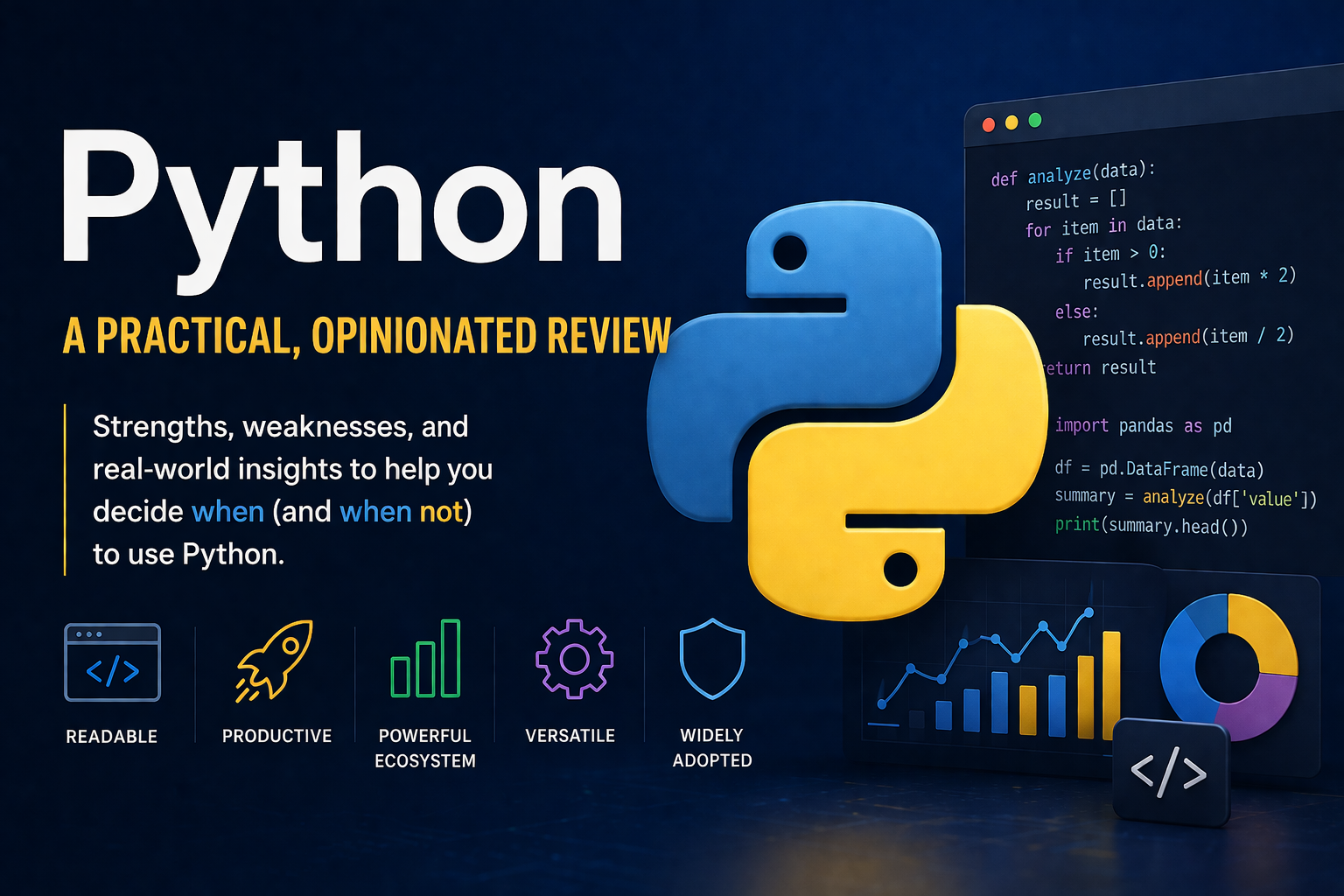
Python: A Practical, Opinionated Review
Overview
Python is one of the most widely adopted programming languages in modern computing. It positions itself as readable, expressive, and accessible—often described as “pseudocode that runs.” That reputation is largely earned, but it comes with tradeoffs that matter more as systems grow.
Where Python Excels
1. Readability and Speed of Development
Python’s syntax is clean and intentionally minimal. You can express complex ideas in very little code. For internal tooling, automation, and APIs, this translates directly into faster delivery.
- Minimal boilerplate
- Strong standard library
- Easy onboarding for new developers
In practical terms: if you need something working this week, Python is often the right choice.
2. Ecosystem Depth
Python’s ecosystem is not just large—it’s dominant in certain domains:
- Data science:
pandas,NumPy,scikit-learn - AI/ML:
TensorFlow,PyTorch - Web:
Flask,Django,FastAPI - Automation: scripting, DevOps, API integrations
For someone working across systems—as you do—Python becomes the glue language that ties everything together.
3. Versatility
Python is used everywhere:
- Backend services
- Automation scripts
- Infrastructure tooling
- Data pipelines
- Security tooling
Few languages span that breadth effectively. Python does.
Where Python Struggles
1. Performance Limitations
Python is not fast. Full stop.
- Interpreted execution
- Global Interpreter Lock (GIL)
- High memory overhead
If you’re building high-throughput systems, real-time processing, or anything CPU-bound, Python becomes a liability unless you offload work to C extensions or external services.
2. Weak Enforcement of Structure
Python gives you freedom—arguably too much.
- No strict type enforcement (even with type hints)
- Easy to write inconsistent codebases
- Architectural discipline is optional, not enforced
In small scripts, this is fine. In large systems, it leads to entropy unless you impose strong standards.
3. Dependency and Packaging Friction
Despite improvements, Python packaging is still messy:
pip,venv,poetry,pipenv—too many competing tools- Native dependencies can break builds (you’ve likely seen this with missing headers like
Python.h) - Version conflicts are common
Compared to ecosystems like Node or Go, Python still feels fragmented here.
4. Deployment Complexity (at Scale)
Python is easy locally but harder in production at scale:
- Slower startup times
- Higher resource usage
- Requires careful containerization and process management
It works well in Docker—but it’s not inherently lightweight.
Real-World Fit (Practical Assessment)
Strong Fit
- Internal tools and automation
- API backends (especially with FastAPI docs)
- Data ingestion and transformation
- Integration-heavy systems
Weak Fit
- High-performance services
- Real-time systems
- Low-level infrastructure components
Opinionated Verdict
Python is not the “best” language—it’s the most useful one.
It optimizes for:
- Developer time over machine efficiency
- Flexibility over strict correctness
- Speed of iteration over long-term rigidity
That tradeoff is exactly why it dominates in practical environments.
However, it requires discipline. Left unchecked, Python codebases degrade faster than those in more opinionated ecosystems.
Final Rating
- Ease of Use: 10/10
- Ecosystem: 10/10
- Performance: 5/10
- Scalability (engineering discipline required): 6/10
- Overall Practical Value: 8.5/10
Bottom Line
If you are building systems that integrate, automate, or orchestrate—Python is difficult to beat.
If you are building systems that must be fast, strict, and highly optimized—Python should not be your first choice.
Used correctly, it’s a force multiplier. Used carelessly, it becomes technical debt faster than most teams anticipate.
-
Email Authentication: What Actually Matters (SPF, DKIM, DMARC, and HELO)
Email authentication is one of those areas where people think they understand it—until something breaks. Then suddenly, messages are getting flagged, spoofed, or silently dropped, and nobody can quite explain why.
Let’s be clear: modern email delivery is not just about sending mail. It’s about proving identity at multiple layers, to multiple systems, in a way that aligns consistently. If any piece is misaligned, your message becomes suspect.
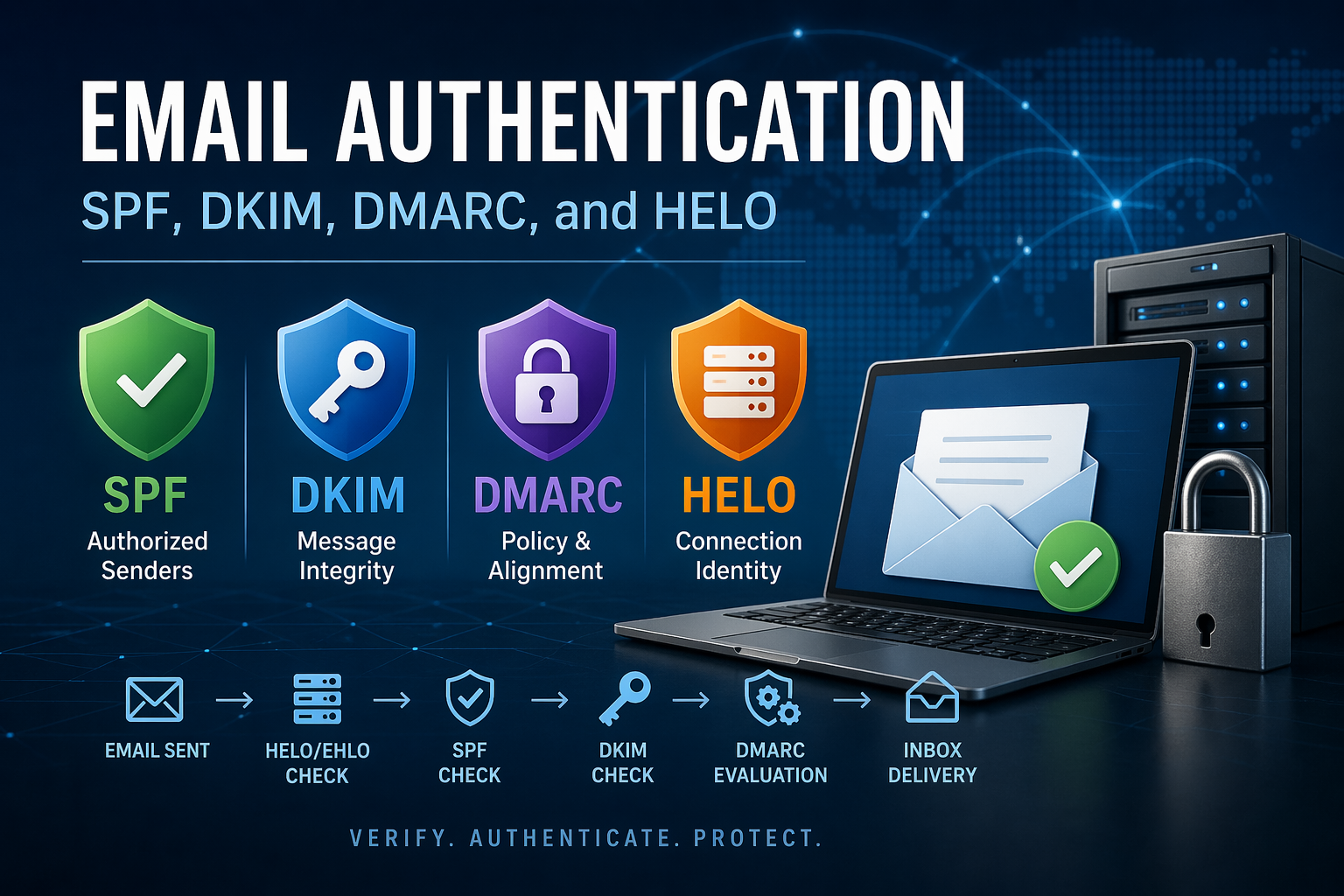
This post walks through the four components that actually matter in practice: SPF, DKIM, DMARC, and HELO (EHLO)—and how they interact.
SPF (Sender Policy Framework)
What it does:
SPF answers a simple question:Is this server allowed to send email for this domain?
It works by publishing a DNS TXT record listing authorized sending IPs or systems.
Example:
v=spf1 include:_spf.google.com include:spf.protection.outlook.com -allWhat happens during a check:
- Receiving server extracts the domain from the MAIL FROM (envelope sender)
- Looks up the SPF record for that domain
- Compares the sending IP against authorized sources
Key reality:
SPF is fragile.- It breaks on forwarding (because the forwarder’s IP isn’t in your SPF)
- It does not validate message integrity
- It does not validate the visible “From” address
Verdict: Necessary, but insufficient on its own.
DKIM (DomainKeys Identified Mail)
What it does:
DKIM cryptographically signs the message.This message hasn’t been altered, and it was authorized by this domain.
How it works:
- Sending server signs the email using a private key
- Public key is published in DNS
- Receiving server validates the signature
Key components:
d=→ domain that signed the messages=→ selector (used to locate the DNS key)
Example DNS record:
selector1._domainkey.example.com TXT "v=DKIM1; k=rsa; p=MIIBIjANBgkq..."What DKIM solves:
- Message tampering
- Domain-level authenticity
What it does NOT solve:
- It doesn’t guarantee the From address matches the signing domain
- You can sign mail for one domain while claiming to be another
Verdict: Strong, but only meaningful when aligned (see DMARC).
DMARC (Domain-based Message Authentication, Reporting & Conformance)
What it does:
DMARC ties everything together—and enforces policy.Do SPF and/or DKIM pass, and do they align with the visible From address?
Example record:
v=DMARC1; p=reject; rua=mailto:dmarc@example.com; aspf=s; adkim=sCore concepts:
1. Alignment (this is where most people fail)
- SPF must align with the From domain
- DKIM must align with the From domain
Alignment can be:
- Relaxed (
r) → subdomains allowed - Strict (
s) → exact match required
2. Policy
none→ monitor onlyquarantine→ spam/junkreject→ outright block
3. Reporting
- Aggregate reports (RUA)
- Forensic reports (RUF, less commonly used)
Why DMARC matters:
- Prevents spoofing
- Enables enforcement
- Provides visibility
Hard truth:
If you don’t have DMARC set to at leastquarantine, you are not actually protecting your domain—you’re just observing abuse.HELO / EHLO (The Overlooked Signal)
What it is:
HELO (or EHLO) is part of the SMTP handshake:EHLO mail.example.com
It tells the receiving server:
This is who I claim to be at the connection level.
Why it matters more than people admit:
Receiving systems evaluate:
- HELO hostname
- Sending IP
- Reverse DNS (PTR record)
- Forward-confirmed reverse DNS (FCrDNS)
Common problems:
- HELO =
localhost→ immediate suspicion - HELO domain doesn’t match PTR → degraded trust
- No PTR record → often rejected outright
What good looks like:
- HELO hostname matches PTR
- PTR resolves back to the same IP
- Domain is valid and consistent with sending identity
Key insight:
HELO is not part of SPF/DKIM/DMARC—but it absolutely influences reputation and filtering decisions.Ignore it, and you will chase “random” deliverability issues forever.
How They Work Together (Real-World Flow)
Here’s what actually happens when you send an email:
- Connection established
- HELO/EHLO evaluated
- IP reputation checked
- PTR validation
- SPF check
- Is this IP allowed to send for the envelope domain?
- DKIM check
- Is the message signed?
- Is the signature valid?
- DMARC evaluation
- Do SPF/DKIM pass?
- Do they align with the From address?
- Apply policy
- Content + reputation filtering
- Spam heuristics
- Historical behavior
Common Failure Patterns (What Actually Breaks)
Let’s be blunt—these are the mistakes that cause real issues:
1. SPF passes, but DMARC fails
- Because SPF domain ≠ From domain
- Result: spoof still possible
2. DKIM passes, but wrong domain
- Signed by a third-party vendor domain
- No alignment → DMARC fail
3. Forwarding breaks SPF
- No DKIM → message fails authentication entirely
4. Misaligned HELO / PTR
- Causes silent filtering or throttling
- Often misdiagnosed as “random delivery issues”
5. Overly complex SPF
- 10 DNS lookups → SPF permerror
- Entire mechanism fails
Practical Recommendations
If you want email to work reliably—not just “most of the time”—do this:
Minimum viable setup
- SPF: include all senders, end with
-all - DKIM: enable for every sending platform
- DMARC: start with
p=none, move toquarantine, thenreject
Alignment discipline
- Ensure:
- Envelope sender domain aligns
- DKIM signing domain aligns
- Avoid mixing domains casually
HELO hygiene
- Set a proper hostname (e.g.,
mail.yourdomain.com) - Ensure:
- PTR record exists
- Forward + reverse match
Vendor management
- Every SaaS sender (M365, Google, SendGrid, etc.) must:
- Be in SPF
- Have DKIM enabled
- Align with your domain
Final Thought
SPF, DKIM, and DMARC are not independent features—they are a system of trust. HELO sits just outside that system but still influences the outcome.
Most organizations don’t fail because they lack these technologies. They fail because they configure them in isolation.
If you take one thing away from this:
Alignment matters more than passing checks.
You can pass SPF and DKIM and still fail DMARC—and that’s exactly how spoofing succeeds in poorly configured environments.
If you want, I can take a real header from your environment and walk through exactly why it’s passing or failing.
-
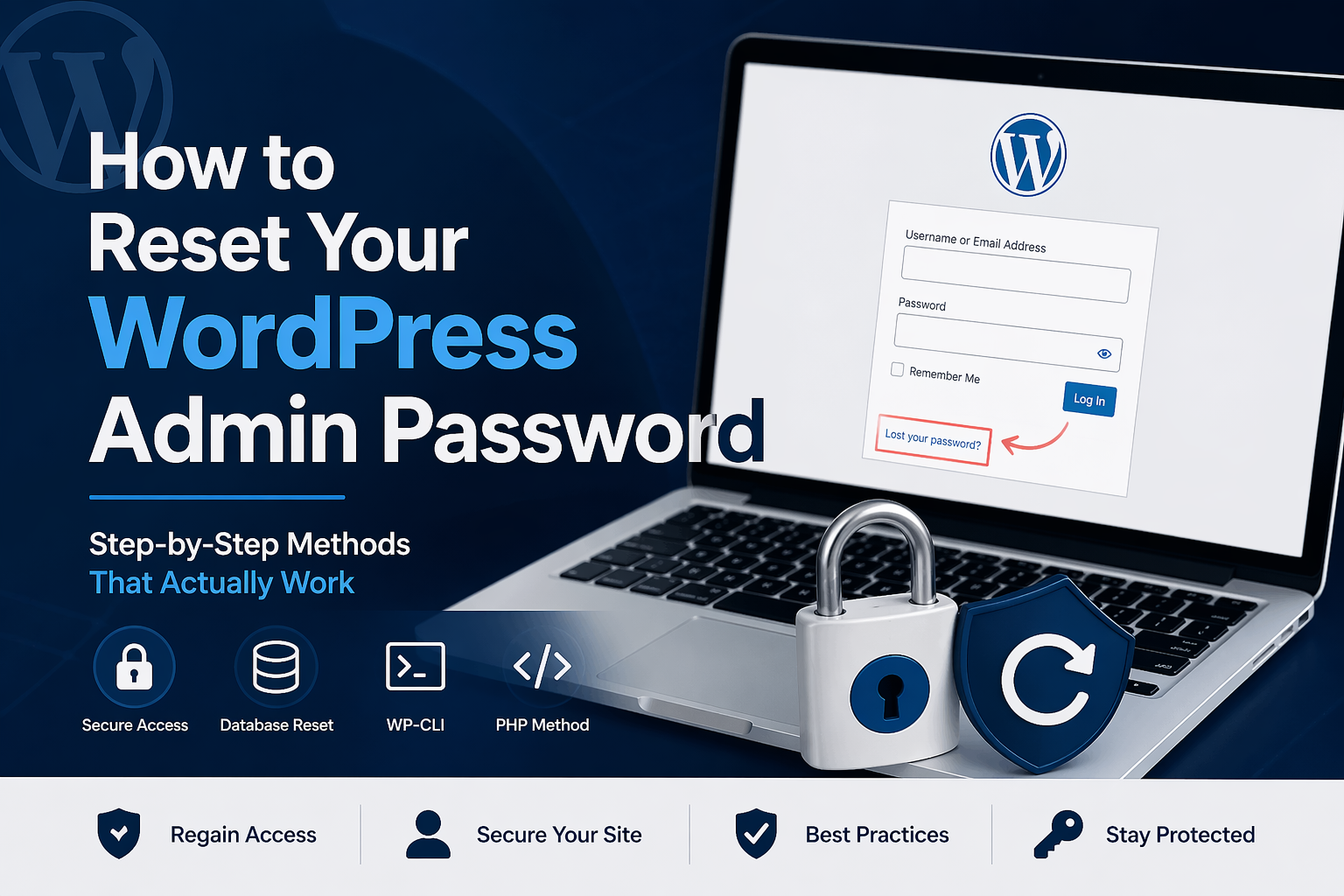
🔐 How to Reset Your WordPress Admin Password (Step-by-Step Guide)
Losing access to your WordPress admin account is frustrating—but it’s also very fixable. Whether your email reset isn’t working or you’re locked out entirely, there are several reliable ways to regain access.
This guide walks through the most practical methods, starting with the easiest and moving to more advanced options.
🔁 Method 1: Use the Built-In Password Reset
If your email system is working correctly, this is the fastest method.
Steps:
- Go to your login page: https://yourdomain.com/wp-login.php
- Click “Lost your password?”
- Enter your username or email
- Check your email and follow the reset link
⚠️ Common Issue:
Many self-hosted WordPress sites do not have email configured properly. If you don’t receive the email, move on to the next method.
🛠️ Method 2: Reset Password via Database (Most Reliable)
This method works even when everything else fails.
Step 1: Access your database
Use:
- phpMyAdmin (via hosting panel)
- MySQL CLI
- Admin tools like Adminer
Step 2: Locate the users table
Look for:
wp_users
⚠️ Your table prefix may not be
wp_. Check yourwp-config.phpfile for:$table_prefix = 'yourprefix_';Step 3: Run the reset query
UPDATE wp_users
SET user_pass = MD5('NewStrongPassword123!')
WHERE user_login = 'admin';
Step 4: Log in
Use your username and the new password.
WordPress will automatically rehash the password securely after login.
🖥️ Method 3: Reset Using WP-CLI (Best for SSH Access)
If you have SSH access, this is the cleanest method.
List users:
wp user list
Reset password:
wp user update admin --user_pass="NewStrongPassword123!"
Use this only if other methods are not available.
Create a file (e.g.,
reset-password.php):<?php
require_once('wp-load.php');
wp_set_password('NewStrongPassword123!', 1);
echo "Password reset.";Steps:
- Upload the file to your WordPress root directory
- Visit: https://yourdomain.com/reset-password.php
- Log in with the new password
- Delete the file immediately
⚠️ User ID
1is usually the main admin account—verify if unsure.⚠️ Troubleshooting Tips
- Wrong table name? Check
$table_prefixinwp-config.php - Multiple admins? Make sure you’re resetting the correct user
- Login loop? Clear:
- Browser cache
- WordPress cache plugins
- CDN cache (e.g., Cloudflare)
🧠 Best Practice Going Forward
- Configure SMTP so email resets work reliably
- Use a password manager
- Enable multi-factor authentication (MFA)
- Avoid using the default
adminusername
✅ Recommendation
- Have SSH access? Use WP-CLI
- No SSH? Use the database method
- Email working? Use built-in reset
Avoid relying solely on email unless you’ve confirmed it’s properly configured.
If you manage multiple WordPress sites, it’s worth standardizing on WP-CLI and proper SMTP configuration to prevent future lockouts.
-

WordPress: When It’s the Right Tool (and When It Becomes a Liability)
Overview
WordPress is a widely used content management system (CMS) designed to simplify website creation and publishing. It powers a significant portion of the web and is often the default choice for small businesses, blogs, and even some enterprise use cases.
On paper, WordPress offers flexibility, a massive plugin ecosystem, and ease of use. In practice, it can either be a highly effective platform—or a maintenance burden—depending on how it’s implemented.
This is not a marketing review. This is based on practical use, deployment, and long-term support considerations.
Where It Fits Well
WordPress works best in environments that have:
- Content-driven websites (blogs, informational sites, marketing pages)
- A need for non-technical users to manage content
- Limited custom application logic
- A willingness to follow best practices around updates and security
Ideal Use Cases
- Small business websites
- Personal or professional blogs
- Marketing and landing pages
- Simple service-based company websites
Where It Falls Apart
WordPress is often stretched beyond what it should be used for.
It tends to struggle when:
- It is treated like a full application platform
- Too many plugins are installed without oversight
- Security and updates are neglected
- Performance is not actively managed
Situations to Avoid
- Highly custom web applications
- Systems requiring strict security or compliance without proper controls
- Environments where no one is responsible for maintenance
- Over-engineered builds with dozens of plugins doing overlapping functions
Real-World Experience
WordPress is easy to get started with, but long-term success depends on discipline.
What Worked
- Rapid deployment of functional websites
- Easy content management for non-technical users
- Large ecosystem of themes and plugins
- Strong community support and documentation
What Didn’t
- Plugin bloat leads to performance and security issues
- Updates can break functionality if not tested
- Inconsistent quality across plugins and themes
- Poor implementations become difficult to maintain over time
Technical Notes
Deployment
- Setup complexity: Low to Moderate
- Time to initial value: Hours to a few days
- Dependencies: Web server (Apache/Nginx), PHP, database (MySQL/MariaDB)
Integration
- Large plugin ecosystem for integrations
- REST API available for custom integrations
- Advanced use cases often require custom development
Operational Considerations
- Maintenance overhead: Moderate (updates are critical)
- Upgrade complexity: Can be risky without staging/testing
- Backup strategy: Essential (files + database)
- Security: Requires active management (patching, hardening, limiting plugins)
Alternatives Worth Considering
Depending on your needs, you may be better off with:
- Static site generators – For performance-focused, low-maintenance sites
- Headless CMS + custom frontend – For modern, scalable architectures
- Website builders (Wix, Squarespace) – For very simple, hands-off use cases
Final Verdict
Recommendation: Strong (with boundaries)
WordPress is an excellent tool when used for what it was designed to do: content-driven websites. It becomes a liability when overextended or poorly maintained.
It is a good fit if:
- You need a flexible, content-managed website
- You want a large ecosystem of themes and plugins
- You have someone responsible for updates and maintenance
It is not a good fit if:
- You’re building a complex application
- You want zero maintenance responsibility
- You rely heavily on unvetted plugins
Bottom Line
WordPress is not inherently good or bad—it reflects how it’s implemented. With discipline, it’s reliable and effective. Without it, it quickly becomes unstable and difficult to manage.
Need Help Implementing or Managing WordPress?
If you’re planning a new site or struggling with an existing one:
- Website design and deployment
- Performance and security optimization
- Hosting and ongoing maintenance
- Cleanup and stabilization of problem sites
→ Contact us at https://migration.mcguire.technology/contact
-
Zsh vs. Bash on macOS: Should You Care?
Starting with macOS Catalina, Apple ditched Bash as the default shell and gave Zsh the crown. Cue the collective sighs and confusion. But here’s the deal—if you’re doing any real terminal work on macOS, it’s worth knowing why that switch happened and whether you should care.
Why the Switch?
Apple made Zsh the default for licensing reasons. The version of Bash that shipped with macOS was ancient (v3.2 from 2007) because newer versions use GPLv3, which Apple didn’t want to mess with. Zsh doesn’t have that problem, so… boom, default.
But it’s not just a legal shuffle—Zsh brings some goodies to the table.
Zsh Perks
- Auto-suggestions: Like fish shell vibes—Zsh can guess what you’re typing and finish your thought. Bash can’t do that natively.
- Globbing on steroids: More powerful wildcard matching. Want to match all files with two digits and a
.logextension? Zsh makes that easy. - Plugins & Themes:
Oh My Zshturns Zsh into a productivity beast. You get Git status right in the prompt, syntax highlighting, fancy themes… Bash just feels barebones after. - Customization: Bash can be customized too, sure—but Zsh makes it easier and sexier.
Downsides?
Not much, unless you’ve got a pile of Bash scripts with weird quirks. Zsh is mostly compatible, but not 100%. You might have to tweak some syntax here and there.
Also, Zsh’s
.zshrcisn’t the same as.bash_profileor.bashrc, so your muscle memory might need a refresh.So, Which Should You Use?
If you’re already neck-deep in Bash and it’s working? Stick with it.
If you’re starting fresh or want something more modern and extensible? Zsh is the move. Especially if you’re living in Terminal daily. Install
Oh My Zsh, pick a theme, grab some plugins, and feel like a hacker god. -
From K-12 IT to Healthcare IT: Preparing for a Major Career Shift
After years in K-12 education IT, I’ve recently accepted a role in healthcare IT. While I haven’t started yet, I’ve been reflecting on what this transition means—what skills carry over, what new challenges I’ll face, and how I can prepare for the shift.
For those in IT considering a similar move, here’s what I’ve learned so far as I prepare to step into this new world.
What K-12 IT and Healthcare IT Have in Common
At first glance, education and healthcare seem like vastly different industries, but IT professionals in both fields share some major responsibilities:
• Security & Compliance – In schools, we deal with FERPA (protecting student data); in healthcare, it’s HIPAA (protecting patient records). Both demand strict access controls, encryption, and careful handling of sensitive information.
• Mission-Critical Systems – Whether it’s a school-wide internet outage during state testing or a hospital’s electronic health records (EHR) system going down, IT failures have real-world consequences. Uptime is non-negotiable.
• Limited Budgets, High Expectations – Schools and healthcare facilities often need to do more with less. Stretching hardware lifespans, optimizing software costs, and making smart infrastructure investments are key skills in both environments.
Key Differences Between K-12 and Healthcare IT
1. Always-On Infrastructure
In K-12, IT can plan maintenance windows around weekends or summer breaks. In healthcare, there’s no downtime—systems need to be available 24/7. Any updates, patches, or changes must be carefully planned to avoid disrupting patient care.
2. Complexity of Systems
K-12 IT teams manage student information systems (SIS), Google Workspace, and classroom technology. Healthcare IT involves electronic health records (EHR), medical imaging (PACS), diagnostic equipment, and secure messaging systems—all of which must integrate smoothly to avoid treatment delays.
3. The Stakes are Higher
A mistake in education IT might mean a teacher loses access to their lesson plan. In healthcare, an IT failure can delay patient care, disrupt surgeries, or compromise life-saving treatments. The pressure to get things right is significantly greater.
How I’m Preparing for the Transition
• Studying Healthcare IT Basics – Learning about EHR systems (like Epic or Cerner), HIPAA compliance, and medical device security before day one.
• Strengthening Security Knowledge – While security is always a priority, cyberattacks on healthcare organizations are a constant threat. Reviewing best practices for network segmentation, access control, and ransomware defense.
• Adjusting to 24/7 Operations – Expecting on-call responsibilities and tighter change management procedures compared to the more flexible schedules in K-12 IT.
Final Thoughts
Switching industries is always a challenge, but IT fundamentals—security, uptime, and problem-solving—are universal. While I expect a learning curve, I’m confident that my experience in K-12 IT has prepared me for what’s ahead.
If you’ve made a similar transition (or are considering one), I’d love to hear your thoughts—what was your biggest challenge? What helped the most? Drop a comment or reach out!
-
Enabling Remote Desktop Access on Windows with PowerShell
When managing a remote network or administering systems across multiple locations, enabling Remote Desktop Protocol (RDP) becomes an essential task. Here’s a quick and efficient way to set up RDP on a Windows machine using PowerShell commands. This method ensures secure connections, including Network Level Authentication (NLA) and the appropriate firewall settings.
1. Enable Remote Desktop Connections
First, you’ll need to enable RDP connections on the system. By default, Windows disables Remote Desktop connections for security reasons. You can change this setting using PowerShell.
Set-ItemProperty 'HKLM:\SYSTEM\CurrentControlSet\Control\Terminal Server\' -Name"fDenyTSConnections" -Value 0This command modifies the registry key that controls RDP access. Setting fDenyTSConnections to 0 ensures that RDP is enabled on the machine.
2. Enable Network Level Authentication (NLA)
Network Level Authentication (NLA) adds an additional layer of security by requiring users to authenticate before establishing a full RDP session. This is a recommended best practice to prevent unauthorized access and reduce the risk of exploitation.
Set-ItemProperty 'HKLM:\SYSTEM\CurrentControlSet\Control\Terminal Server\WinStations\RDP-Tcp\' -Name "UserAuthentication" -Value 1By setting UserAuthentication to 1, you ensure that NLA is required for all RDP connections, thus enhancing the security of remote desktop access.
3. Enable Windows Firewall Rules for RDP
Now, we need to ensure that the Windows firewall allows incoming RDP connections. Windows Firewall typically blocks most incoming traffic unless explicitly allowed. Luckily, you can enable the necessary firewall rules for RDP with this command:
Enable-NetFirewallRule -DisplayGroup "Remote Desktop"This command enables the built-in firewall rules under the “Remote Desktop” group, allowing RDP traffic to pass through the firewall.
Final Thoughts
By running these three PowerShell commands, you can quickly and securely enable Remote Desktop access to a Windows machine. The combination of enabling RDP, enforcing NLA, and allowing RDP through the firewall creates a balanced approach to remote access that is both efficient and secure.
-
Understanding Transactions in T-SQL: BEGIN, ROLLBACK, and COMMIT
⚠️When a transaction is active, SQL Server locks affected tables and rows, preventing other queries from modifying them until the transaction is committed or rolled back. Long-running transactions can cause blocking, deadlocks, and performance issues, especially in high-traffic databases.
Understanding Transactions in T-SQL: BEGIN, ROLLBACK, and COMMIT
When working with Microsoft SQL Server, data integrity is crucial. Imagine running an update query on a production database and realizing midway that something is wrong—without transactions, your partial changes would be saved, potentially causing data corruption. That’s where T-SQL transactions come in.
Transactions in SQL Server allow you to group multiple operations into a single unit. If all operations succeed, the changes are committed; if something fails, you can roll back to ensure no partial updates occur. Let’s dive into the three key transaction commands: BEGIN TRANSACTION, COMMIT, and ROLLBACK.
1. BEGIN TRANSACTION
The BEGIN TRANSACTION statement marks the start of a transaction. From this point forward, SQL Server tracks all changes until you either commit them (COMMIT TRANSACTION) or undo them (ROLLBACK TRANSACTION).
Example: Starting a Transaction
BEGIN TRANSACTION;
UPDATE Employees SET Salary = Salary * 1.10 WHERE Department = 'IT';
At this stage, the salary updates are made but not yet saved. If an error occurs or if we decide to cancel, we can roll back to the previous state.
2. COMMIT TRANSACTION
Once you’re satisfied that all operations in the transaction were successful, you use COMMIT TRANSACTION to make the changes permanent.
Example: Committing a Transaction
BEGIN TRANSACTION;
UPDATE Employees SET Salary = Salary * 1.10 WHERE Department = 'IT';
COMMIT TRANSACTION;
Now, the salary changes are saved, and they cannot be undone.
3. ROLLBACK TRANSACTION
If something goes wrong, you can revert all changes made since BEGIN TRANSACTION using ROLLBACK TRANSACTION. This ensures data integrity by preventing partial updates.
Example: Rolling Back a Transaction
BEGIN TRANSACTION;
UPDATE Employees SET Salary = Salary * 1.10 WHERE Department = 'IT';
-- Simulating an error
IF @@ERROR <> 0
    ROLLBACK TRANSACTION;
ELSE
    COMMIT TRANSACTION;
In this case, if an error occurs, the changes are discarded, and the database remains unchanged.
4. Using TRY…CATCH for Safe Transactions
To handle errors properly, wrap transactions in a TRY…CATCH block.
Example: Safe Transaction Handling
BEGIN TRANSACTION;
BEGIN TRY
    UPDATE Employees SET Salary = Salary * 1.10 WHERE Department = 'IT';
    COMMIT TRANSACTION;
END TRY
BEGIN CATCH
    PRINT 'Error occurred. Rolling back changes.';
    ROLLBACK TRANSACTION;
END CATCH;
If any part of the transaction fails, it will be rolled back automatically.
5. Nested Transactions (Be Careful!)
SQL Server allows nested transactions, but only the outermost COMMIT TRANSACTION truly saves the changes. Rolling back anylevel undoes everything.
BEGIN TRANSACTION;
    UPDATE Employees SET Salary = Salary * 1.10 WHERE Department = 'IT';
    BEGIN TRANSACTION;
       UPDATE Employees SET Bonus = Bonus + 500 WHERE Department = 'IT';
    COMMIT TRANSACTION;
ROLLBACK TRANSACTION; -- This undoes all changes, including the bonus update.
Even though we committed the inner transaction, the rollback at the outer level undoes everything.
Conclusion
Using transactions in T-SQL ensures data consistency and integrity. Always wrap critical updates in BEGIN TRANSACTION, and use ROLLBACK when things go wrong. If you’re running production queries, consider using TRY…CATCH to prevent data disasters.
By mastering BEGIN, COMMIT, and ROLLBACK, you gain full control over your SQL operations—ensuring changes only persist when everything runs smoothly.
Have you ever had to roll back a bad update? Let me know in the comments!
-
How to Check Service Provider Status Pages (Before Panicking)
You’re sitting at your desk, trying to get work done, when suddenly—your internet drops, emails won’t send, or a critical SaaS tool refuses to load. Before you flood your IT team (or Twitter) with complaints, there’s one simple step that can save everyone time: checking the provider’s status page.
Major service providers maintain public status pages to report outages, scheduled maintenance, and ongoing incidents. Knowing where to find them can mean the difference between informed troubleshooting and unnecessary frustration.
Why Check Status Pages?
- Instant Answers – No need to guess if an outage is affecting others. A status page confirms it.
- Saves Time – If the issue is provider-side, you can stop wasting time rebooting routers or reinstalling apps.
- Avoids Unnecessary Tickets – IT teams love fewer tickets. If it’s a widespread outage, they’re likely already aware.
- Plan Around Maintenance – Some downtime is scheduled. A quick check helps you prepare.
Where to Find Status Pages
Most major service providers maintain dedicated status pages. Here are some of the big ones:
Internet & Cloud Providers
- AWS – https://status.aws.amazon.com/
- Microsoft Azure – https://status.azure.com/
- Google Cloud – https://status.cloud.google.com/
ISPs & Telecom
- AT&T – https://www.att.com/outages/
- Comcast Xfinity – https://www.xfinity.com/support/status
- Spectrum – https://www.spectrum.net/page/service-outages
SaaS & Productivity Tools
- Microsoft 365 (Outlook, Teams, OneDrive, etc.) – https://status.office365.com/
- Google Workspace (Gmail, Drive, Meet, etc.) – https://www.google.com/appsstatus
- Zoom – https://status.zoom.us/
Financial & Payment Services
- PayPal – https://www.paypal-status.com/
- Stripe – https://status.stripe.com/
- Square – https://www.issquareup.com/
Developer & Hosting Services
- GitHub – https://www.githubstatus.com/
- Cloudflare – https://www.cloudflarestatus.com/
- DigitalOcean – https://status.digitalocean.com/
What to Look For
Once you’re on a status page, check for:
- Current incidents – Is there an outage affecting your region or service?
- Past incidents – If your issue just resolved, a recent outage may have been the cause.
- Scheduled maintenance – Check if downtime was planned.
- ETA for resolution – Some providers update with estimated fix times.
What If There’s No Reported Outage?
If the status page says everything is fine, but you’re still experiencing issues:
- Check third-party outage trackers – Sites like Downdetector aggregate user reports.
- Ask colleagues – Are others in your office having the same issue?
- Reboot your equipment – Classic move, but sometimes necessary.
- Check your ISP status – If your internet is down, it might not be the service provider’s fault.
Final Thoughts
Next time something isn’t working, don’t panic—check the status page first. It might save you a headache and a support call. Bookmark the pages you rely on most and stay ahead of outages like a pro.
Have a favorite status page or a story about an outage? Share in the comments!
